Business Card Provisioning
Automate what happens when someone joins a group, so new team members get a digital business card without an admin building it. Triggered by the source you use to import team members into the platform, whether a directory, form, or CSV.
What is Business Card Provisioning?
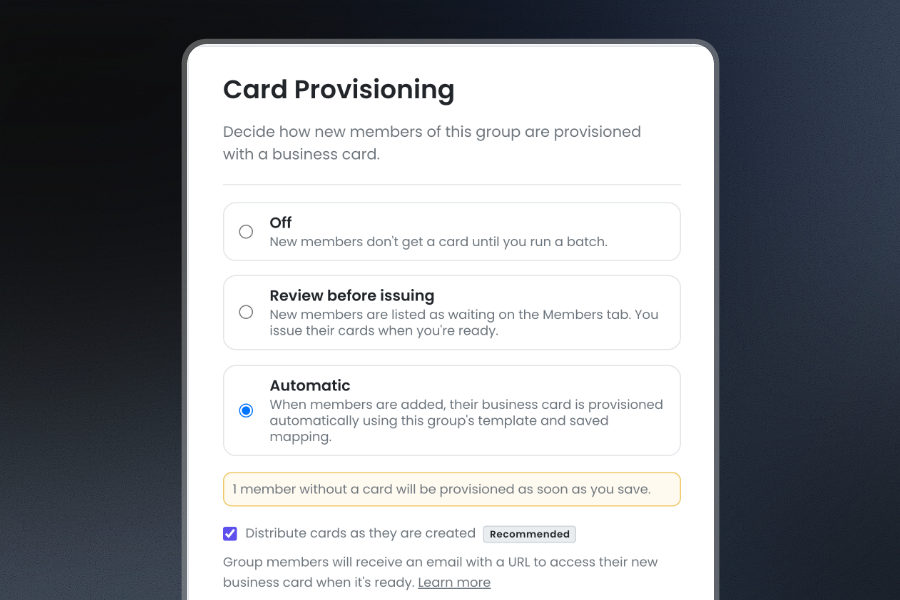
Card Provisioning is an automation policy you can set per Group. It watches the Group's membership and, when people join, provisions their digital business card from the Group's template and saved field mapping. You choose how much control you keep:
- Automatic. New group members automatically have a business card provisioned for them in the group.
- Review before issuing. New group members are held as waiting until an admin triggers issuance of their cards with one click.
- Off. Nothing happens until you run a batch. This is the default/existing workflow.
Because the policy runs through the same batch pipeline you already use, every card it creates carries the Group's branding, layout, and field mapping, and every run is visible on the Group's Batches tab.
Card Provisioning automation is available on Business and Enterprise plans. Only workspace Owners and Admins can change a Group's policy.
Why use it
- Directory sync becomes hands-off. Connected Groups from Microsoft Entra ID or Google Workspace now support automation across import, sync, and card distribution. Without the need for an active admin in the loop.
- Consistency without effort. The policy always uses the Group's template and saved mapping, so the hundredth card matches the first.
- Distribution is built in. Each new card can be emailed to its owner the moment it is ready, using the same approach as batch auto distribution.
- New hires are ready on day one. A person added to your Sales Group in the morning has a business card in their inbox before their first meeting, with the right title, phone number, and branding.
- Control when you want it. Review before issuing lets you check who joined before any card exists, which suits Groups fed by a form or by a directory group you do not own.
How it works
This card provisioning automation is trigger-based and reacts to group membership additions, whether by an admin on the Members tab or via directory sync; the saved policy runs shortly afterward.
It collects every member of the Group who does not yet have a business card and, in Automatic mode, provisions them together as a batch. Twelve people synced overnight are provisioned in one run, not twelve separate operations.
Each automatic batch appears on the Group's Batches tab with the type Auto, named for the date and time it ran. Open it to see its cards, its errors, and its settings, exactly like a batch you created yourself. Use Hide automatic to see only your own batches.
Members who already have a business card in the Group are never touched. A person can hold one business card per Group, and the policy only ever creates cards for members without one.
If a batch is already creating cards for the Group when the policy fires, the run waits and picks up the new members once that batch finishes. Nothing is lost, and nothing is duplicated.
Getting started
Prerequisites
- A Business or Enterprise plan, and an Owner or Admin role.
- A Group with a template assigned.
- A saved batch mapping for the Group. This tells the policy which recipient fields fill which template fields on each card.
Saving a batch mapping, if the Group does not have one yet:
- Open the Group and create a batch from its members.
- Map your data to the template fields as usual.
- On the publish step, turn on Remember this mapping and deploy.
From then on, the mapping is stored on the Group, and the Group page shows an Automate card provisioning for new members prompt with a Set Up Policy button.
Where to find it: open the Group, go to Settings, and look for the Card Provisioning card under Provisioning.
Setting up a policy
- Open the Group and go to the Settings tab.
- On the Card Provisioning card, click Set Up Policy. If a policy already exists, the button reads Manage Policy.
- Choose a mode: Off, Review before issuing, or Automatic. Automatic is only available once the Group has an assigned template and saved mapping; until then, the option explains what to do.
- With Automatic selected, decide whether to keep Distribute cards as they are created on. We recommend leaving it on.
- If members are already waiting without a card, the modal tells you how many will be provisioned as soon as you save. Pick Review before issuing instead if you want to check them first.
- Click Save Changes.
Saving as Automatic starts a provisioning run right away for anyone already waiting. After that, the policy runs whenever members are added.
Choosing the right mode
Automatic suits Groups whose membership you trust: a department synced from your directory, a team an admin manages by hand, a Group where everyone who joins should have a business card. It is the mode that makes onboarding hands-off.
Review before issuing suits Groups where joining and deserving a card are not the same thing: a Group fed by a form, a directory group that also contains contractors or shared mailboxes, or any Group where you want a look before a card exists. New members appear as waiting on the Members tab, the Group shows up in your Tasks, and you issue the cards when ready.
Off suits Groups you provision in deliberate waves, such as an event Group where you build one batch and are done.
Distributing business cards automatically
With Distribute cards as they are created on, each new business card is emailed to its owner as soon as it is ready. The email contains a link to their card, which opens with their work email address and needs no password or app. This is the same access email batch auto distribution sends.
With it off, cards are created but not sent. Distribute them from the batch when you are ready, or turn the option on later; it applies to future runs.
Reviewing members before issuing
In Review before issuing mode, the Members tab shows how many members are waiting, for example, "3 members are waiting for cards", with an Issue cards button. Clicking it opens the batch publish step pre-filled with the Group's saved mapping, so issuing the waiting cards is one review and one click. The waiting count also appears in your Tasks and in the Provisioning column of the Groups list until the cards are issued.
Adding people to a Group that provisions automatically
In an Automatic Group, adding a member is how you give someone a business card. From the Members tab, click Add Members, pick the person, confirm, and their card follows. The member selector reminds you that cards are provisioned automatically for this Group.
The same applies from the Cards page: choose Add card, pick a Group, and if that Group is Automatic, you land on its Members tab with Add Members open rather than in the batch flow. For a Group connected to a directory, membership is managed by the integration and your directory.
Keeping track
Tasks. Owners and Admins see a Tasks count in the dashboard header whenever something needs an admin: members waiting for cards, automatic cards that could not be created, a saved mapping that no longer fits the template, a failed batch, or a directory connection that needs reconnecting. Each task links to the place where you fix it.
When provisioning cannot run
- The template changed and the mapping no longer fits. Automatic pauses and the Group shows "Mapping drifted". Click Edit mapping on the Settings tab, re-map once, and the policy resumes.
- Another batch is creating cards for the Group. The run waits and repeats once that batch finishes. No action needed.
- The plan changed. If your workspace moves to a plan without Groups automation, policies are kept, but their runs are skipped. Upgrading resumes them without setting anything up again.
- A card could not be created. The batch records the error against that member, the Group shows "Needs attention" in Tasks, and the member stays waiting for the next run once the cause is fixed.
Frequently asked questions
Does this work with Microsoft Entra ID and Google Workspace? Yes. A scheduled or manual sync that adds members to a connected Group triggers the policy the same way a manual add does. Members removed by a sync follow your removal settings for that integration, not the policy.
Will it create cards for people who already have one? No. The policy provisions only members who don't already have a business card in that Group.
What if I turn on Automatic and some members are already waiting? They are provisioned as soon as you save. The modal tells you how many before you confirm, so you can choose Review before issuing instead.
Can I turn it off? Yes, at any time. Set the mode to Off. Cards already created stay where they are.
Are automatic cards billed differently? No. They count towards your card usage exactly like cards created any other way.
Can different Groups have different policies? Yes. Each Group carries its own policy, so Sales can be Automatic while a partner Group waits for review.